
Summary
Business Card Scanner allows reps to instantly create new Company or Person records by scanning a business card, eliminating manual data entry after in-person meetings.
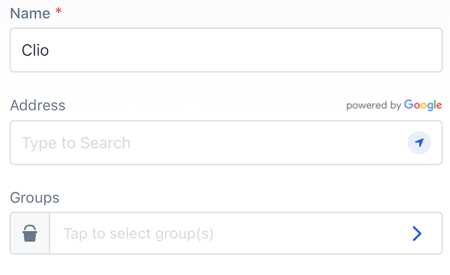
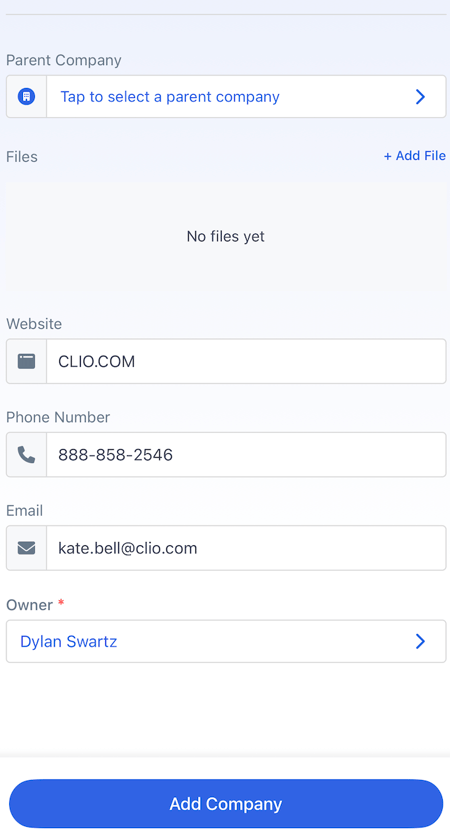
From the mobile app, reps can scan a card, review parsed details, and save a fully populated record in seconds. Key fields like name, company, phone, email, and address are automatically extracted and mapped into the appropriate form.
To scan a business card:
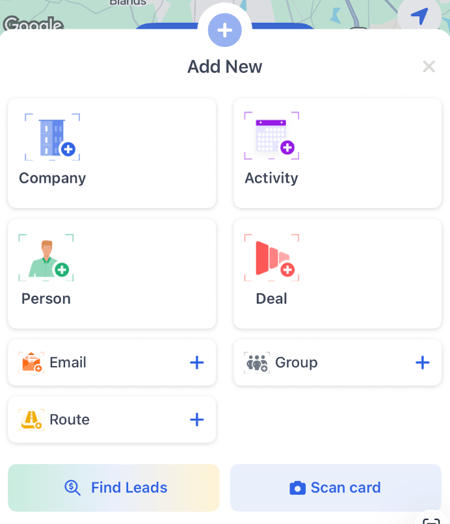
- Tap the plus(+) button on the bottom center of the screen.

- Tap Scan card in the bottom right of the menu.
- If you have not already, allow MMC to access your device's camera.
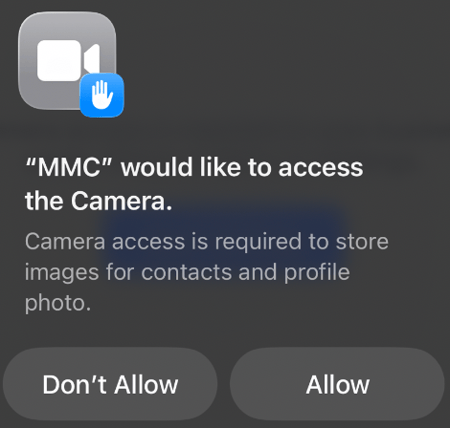
- If you have not already, allow MMC to access your device's camera.
- Position the business card in the marked area of the camera view.
- If camera does not automatically detect the card. Position the card to the best of you ability and press the blue capture button.
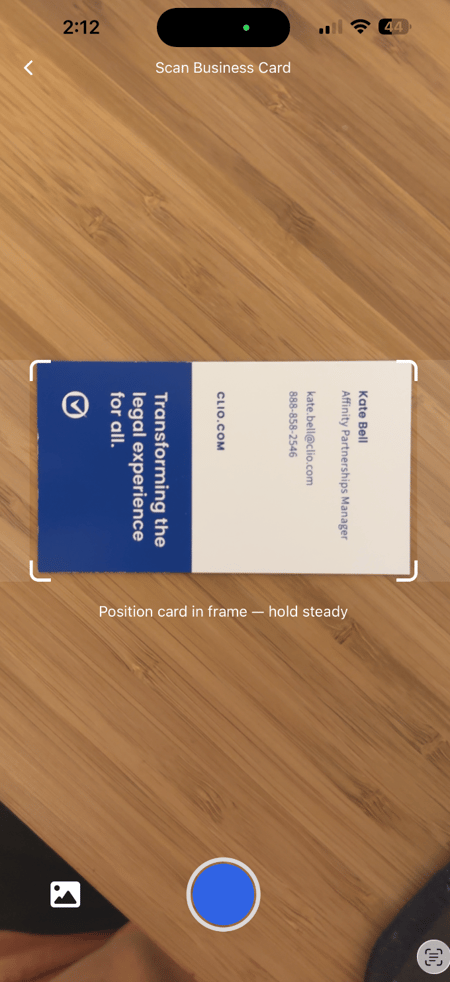
- If camera does not automatically detect the card. Position the card to the best of you ability and press the blue capture button.
- Specify to save the contact as a Company or Person
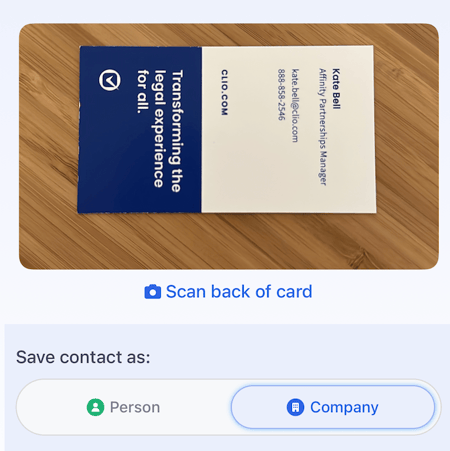
- Select Scan back of card if you business card has more information on the back.
- Review the captured information and select Add Company.
- Click the popup at the top of the page when returning to camera view if you would like to preview the added Company or Person. Otherwise continuing steps 3 through 5 to scan additional cards.