
Using Map My Customers, you can easily create Routes that are based on optimized distance and duration or around scheduled arrival times to stops
To Create a Route:
- Click "Routes" from the navigation bar.

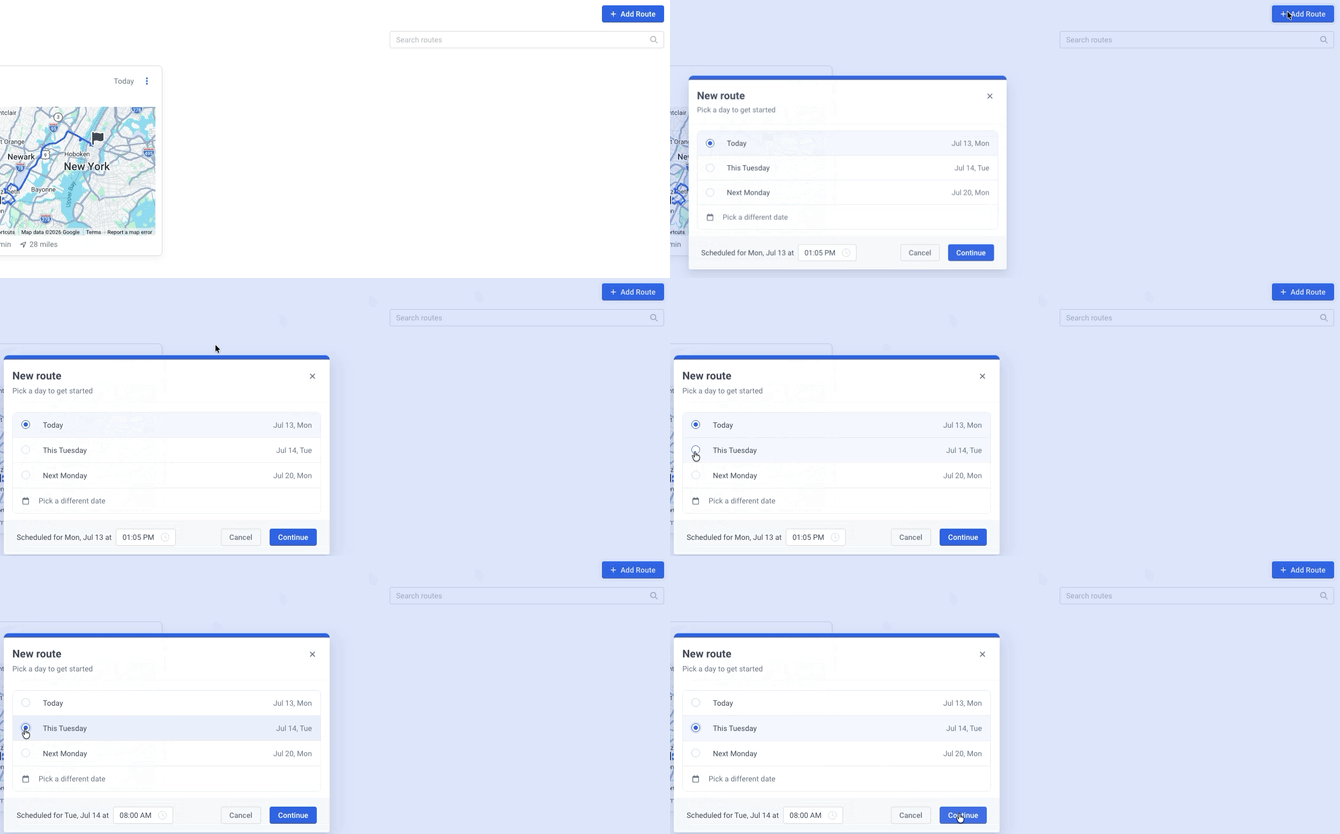
- Click "+ Add Route."
- Choose a date for the Route: Today, Tomorrow, a named day later this week, or pick any future date from the calendar.
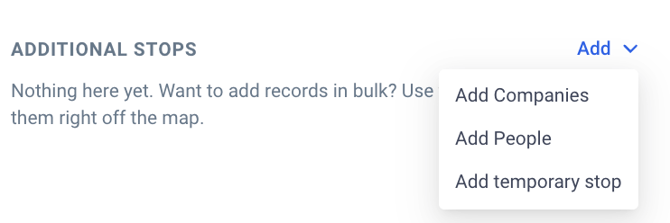
- Use the blue "Add" button to search for and add specific Company and People records
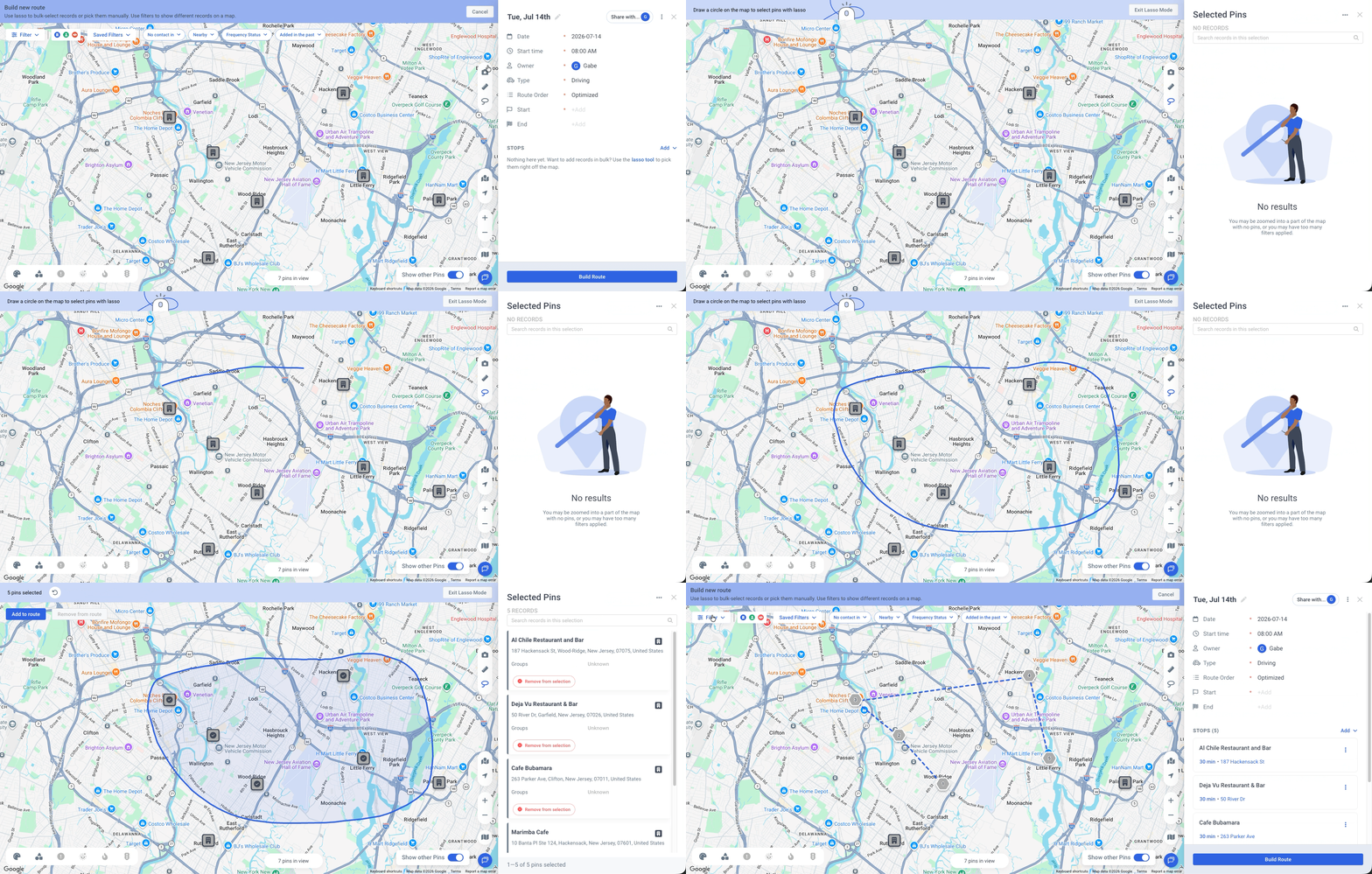
- Lasso a group of pins directly on the map to add them in bulk. Click "Add to route" once your stops are selected. You are able to apply filters to narrow down which pins are available to add.
- Add a Temporary Stop [Enterprise Only Feature] for a meeting that isn't tied to an existing record (for example, coffee with a contact at a location not in your CRM). Enter an address and, optionally, lock a specific arrival time.
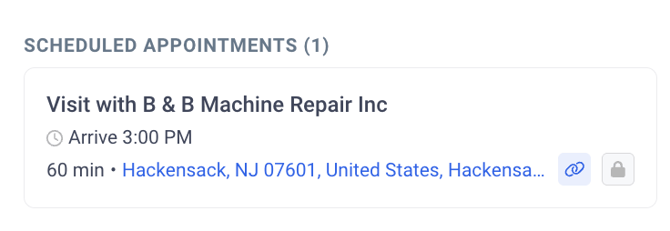
Temporary Stops support navigation and activity logging only and they don't support Check-In. - If you have preplanned Activities on your MMC Planner on the same day as the Start Date of your Route, you will be prompted to add these Activities into the Route that you are building on the right side panel [Enterprise Only Feature]
- Use the blue "Add" button to search for and add specific Company and People records
- Enter the Route details:
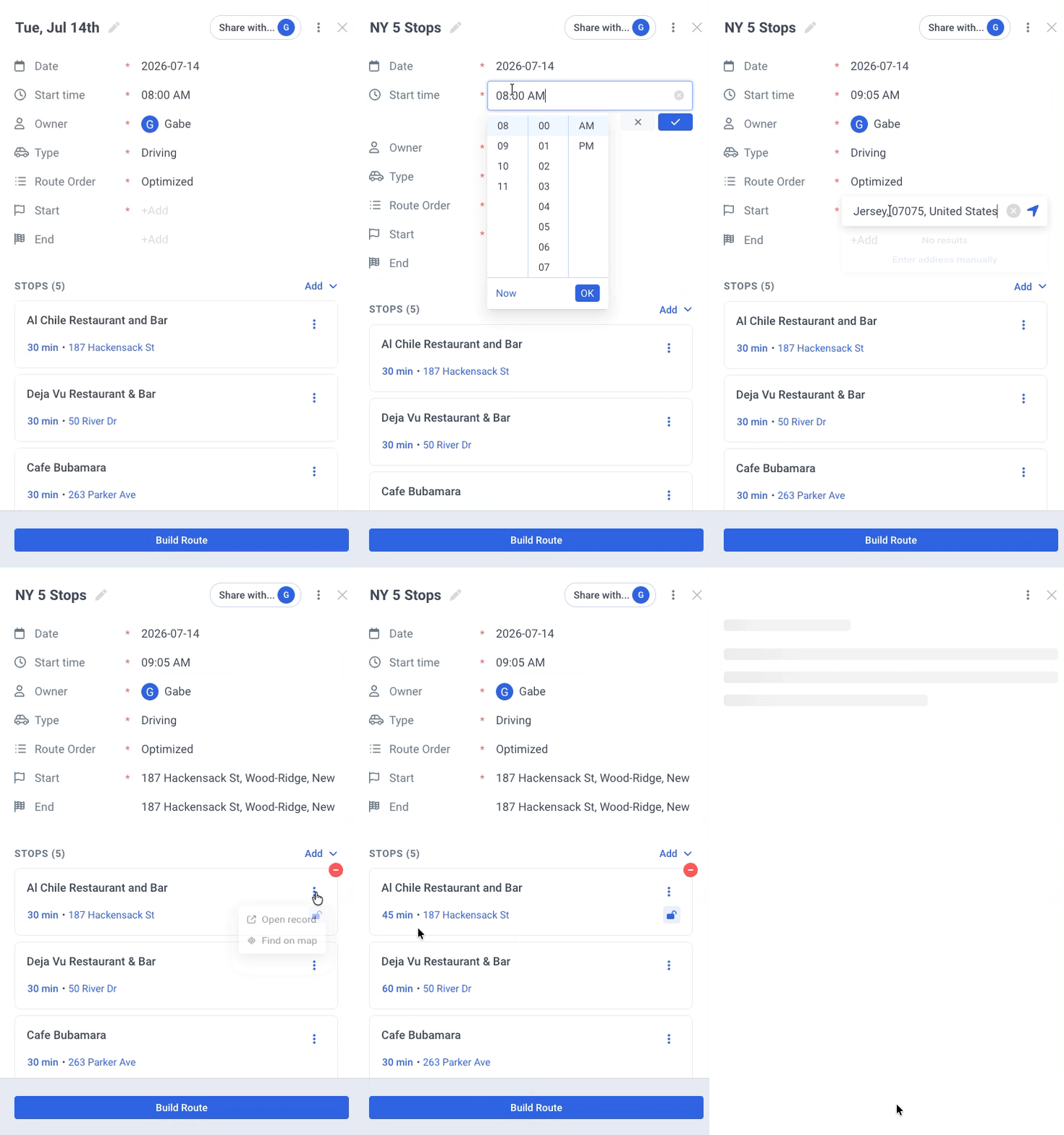
- Name the Route
- Set a Start Date and Time
- Select "Optimized" or In Order"
- Set the allotted time for each stop
- Set the Start and End Location
- Click "Build Route."