
There are many ways you can edit routes within the Routes section. This article walks through how you can:
- Edit the route details
- Invert the Route
- Edit a Route's stops
- Lock the arrival time of a stop
- Add a temporary stop
- Clone a Route
- Delete a Route
To edit an existing Route details:
- Click "Routes" from the navigation bar.

- Select the route to edit
- Select the field to edit
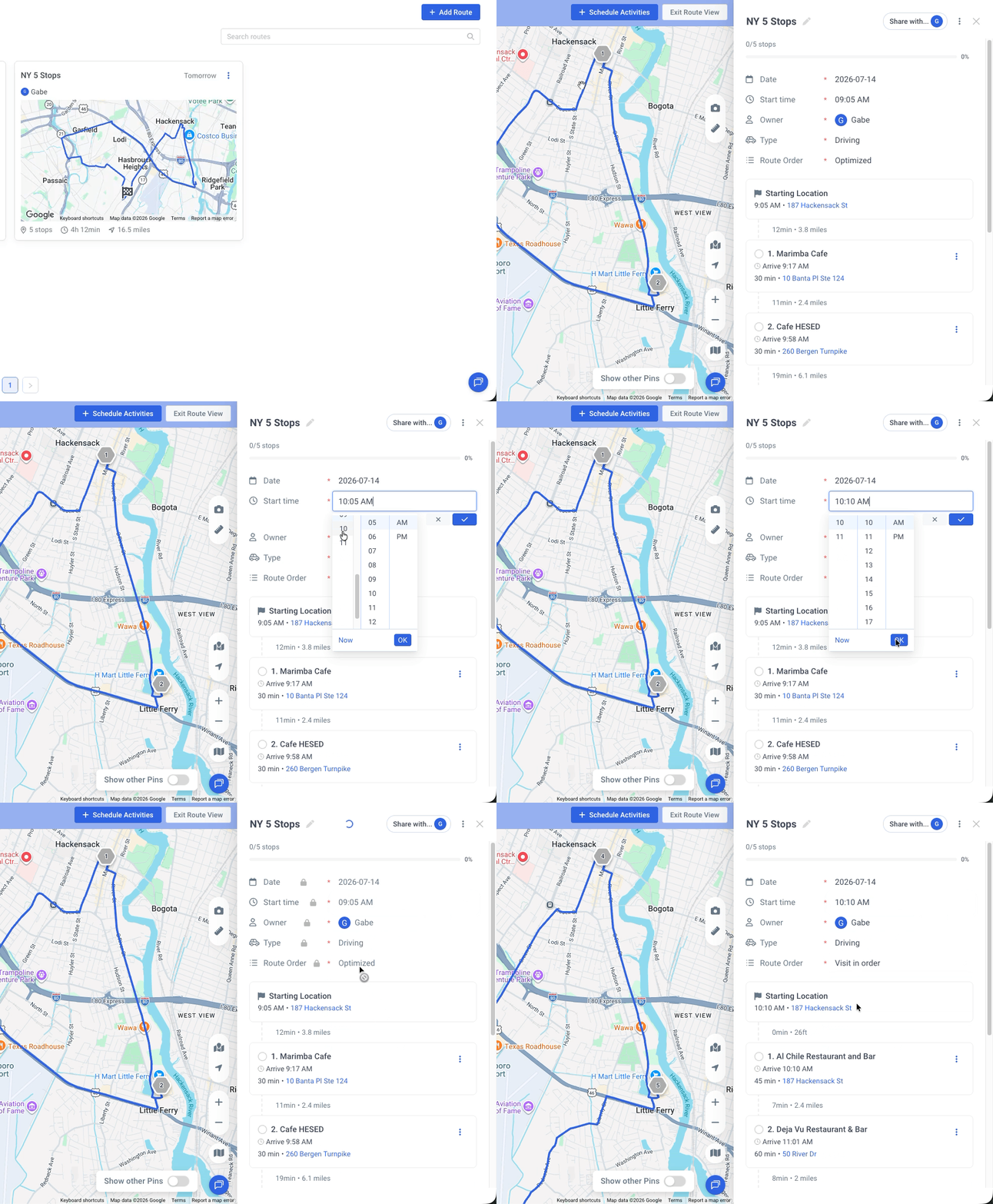
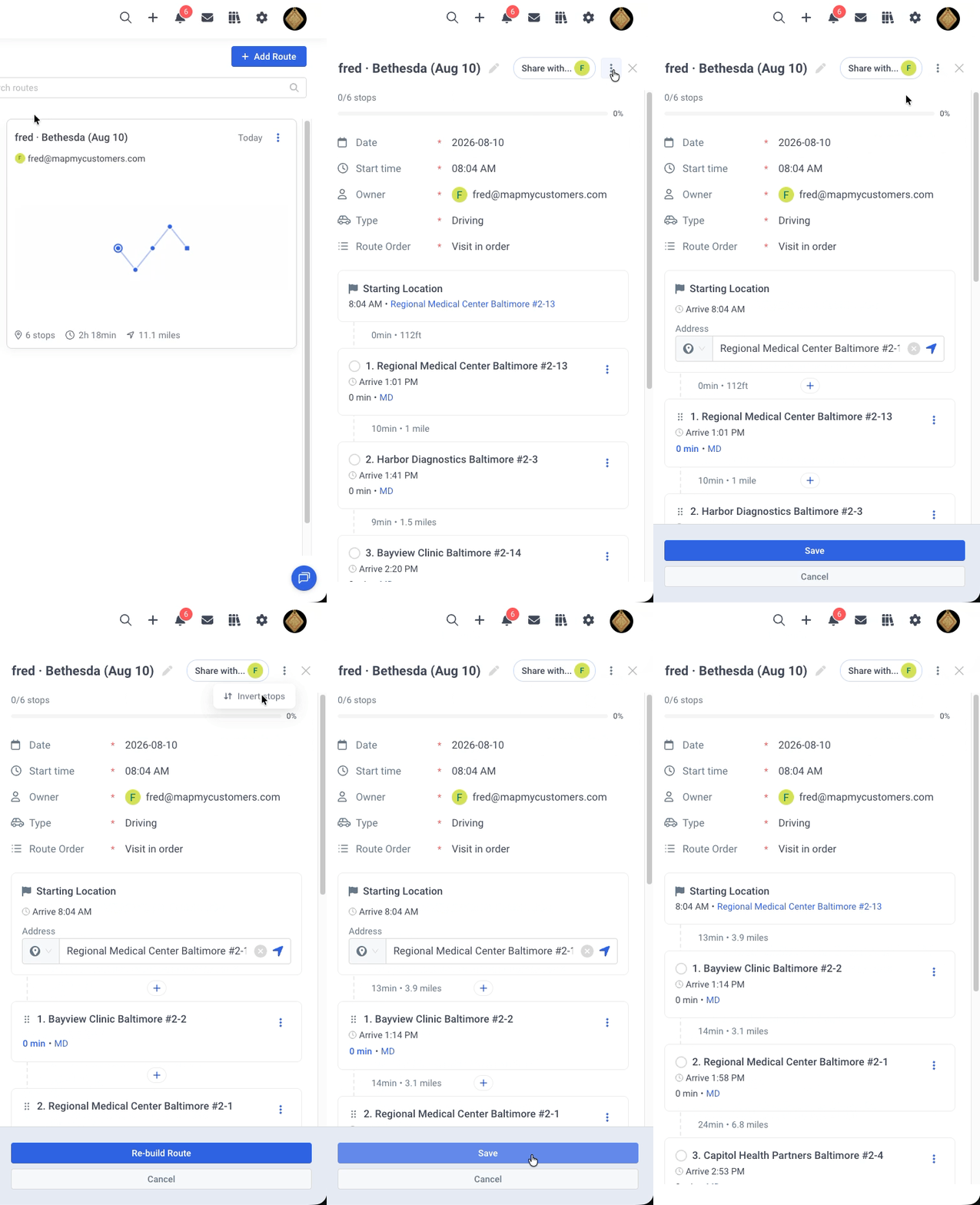
To invert the Route:
If the Route was optimized closest stop to furthest stop and you would like to start at the furthest location and work your way home, the invert functionality will completely inverse the order of the stops in one click of a button
- Click "Routes" from the navigation bar.
- Select the route to edit.
- Click the three dots in the top right.
- Select "Edit Stops."
- Click the three dots in the top right.
- Select "Invert stops."
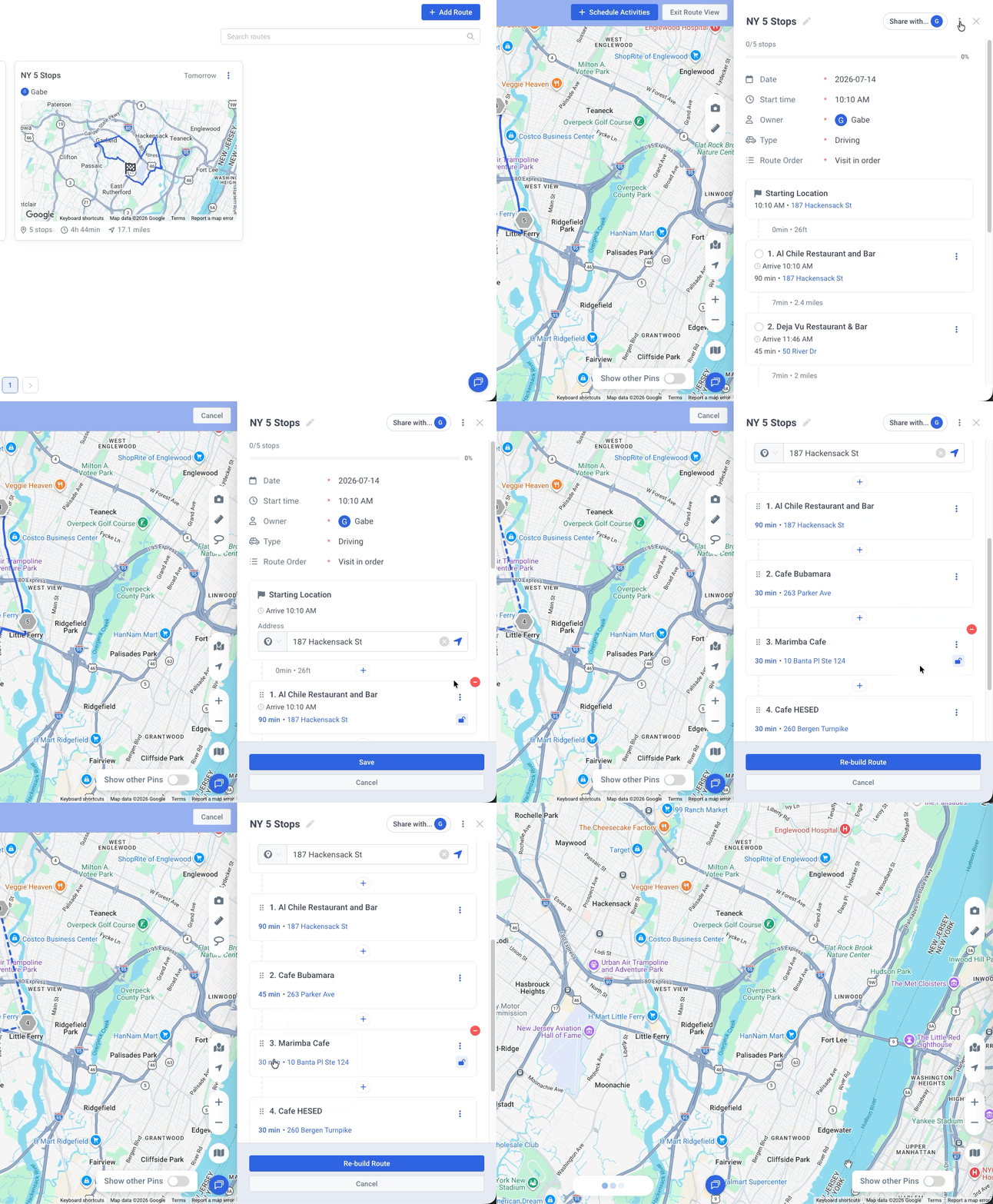
To edit an existing Route's stops:
- Click "Routes" from the navigation bar.
- Select the route to edit.
- Click the three dots in the top right.
- Select "Edit Stops."
- Click the three dots on the right of the route to:
- Open record
- Find on map
- Edit / lock an arrival time [Enterprise Only Feature]
- Mark done
- Remove
- Click the the current allotted time to select a new one
- Drag and drop stops to reorder them by clicking the 6 dots to the right of the stop's name.
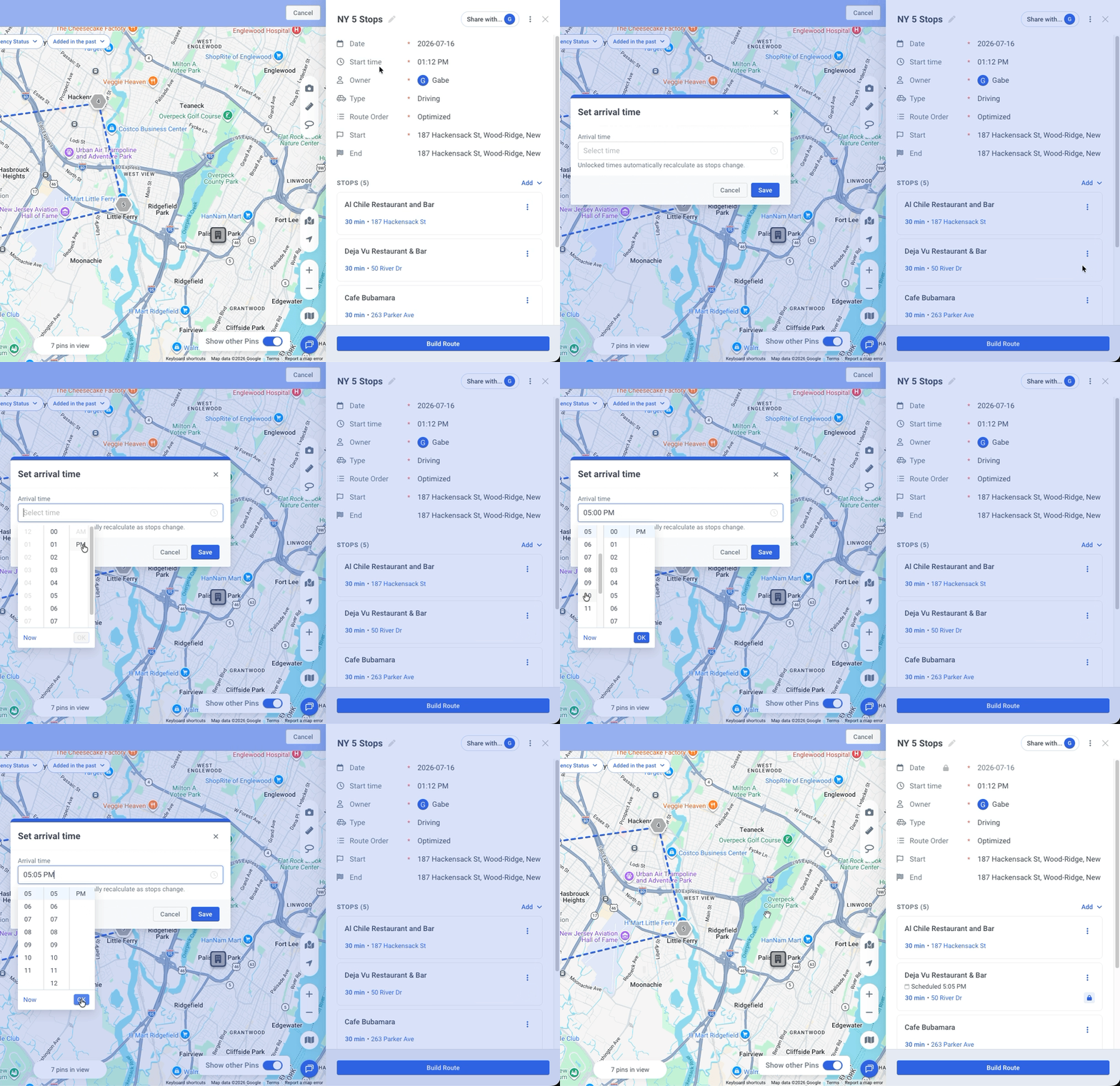
To lock the arrival time of a stop [Enterprise Only Feature]:
- Click "Routes" from the navigation bar.
- Select the route to edit
- Click the three dots in the top right.
- Select "Edit Stops."
- Click the lock icon next to the stop
- Select an arrival time and click 'Save.'
To add a temporary stop:
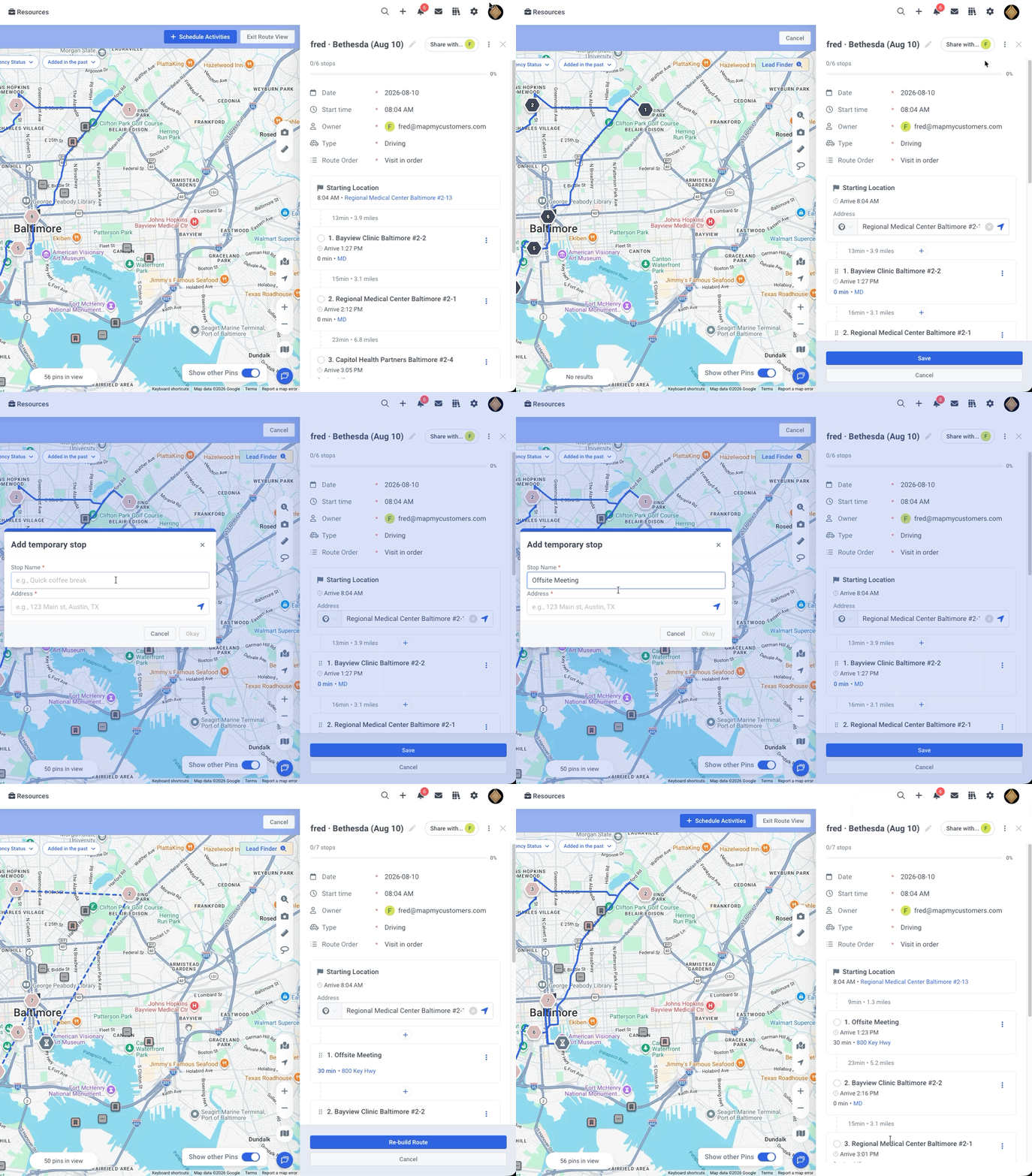
Perhaps you are meeting with a client for lunch or at an off-site location, Temporary stops allow you to add these locations into the Route you build without having to add the location (like a coffee shop) as a record into MMC.
- Click "Routes" from the navigation bar.
- Select the route to add the temporary stop to.
- Click the three dots in the top right.
- Select "Edit Stops."
- Click "Add stop" and then "Add temporary stop."
- Enter the Stop Name and Address and click "Okay."
- Click "Re-build route" and then "Save."
To clone a Route:
- Click on "Routes" at the top Navigation Menu.
- If the Route is upcoming, use the three dot menu option in the right corner of the Route you would like to clone.
- Click "Duplicate" and confirm the deletion in the next popup.
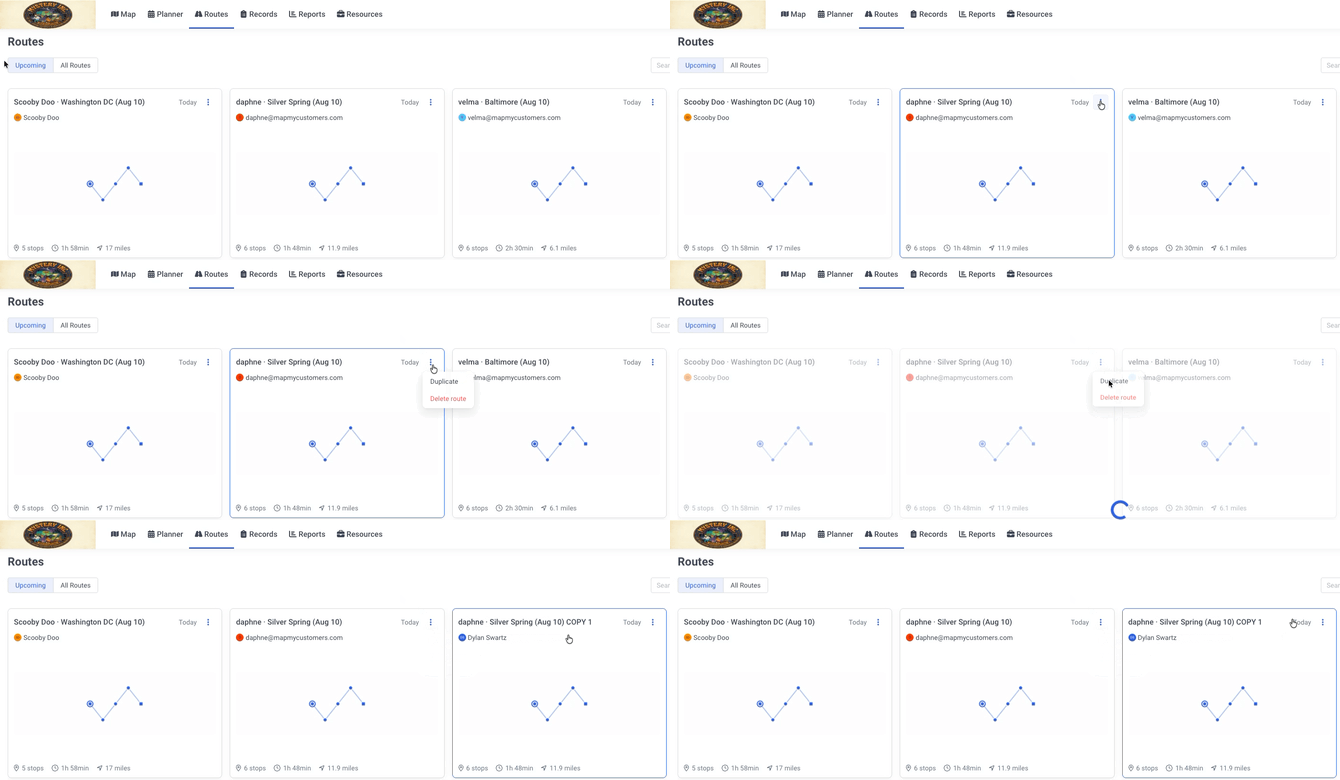
- If the Route is not upcoming, find the Route you would like to clone in the All Routes tab. Open the Route and use the three dot menu option in the right corner of the Route to expose the "Duplicate" option.

To delete a Route:
- Click on "Routes" at the top Navigation Menu.
- If the Route is upcoming, use the three dot menu option in the right corner of the Route you would like to delete.
- Click "Delete route" and confirm the deletion in the next popup.
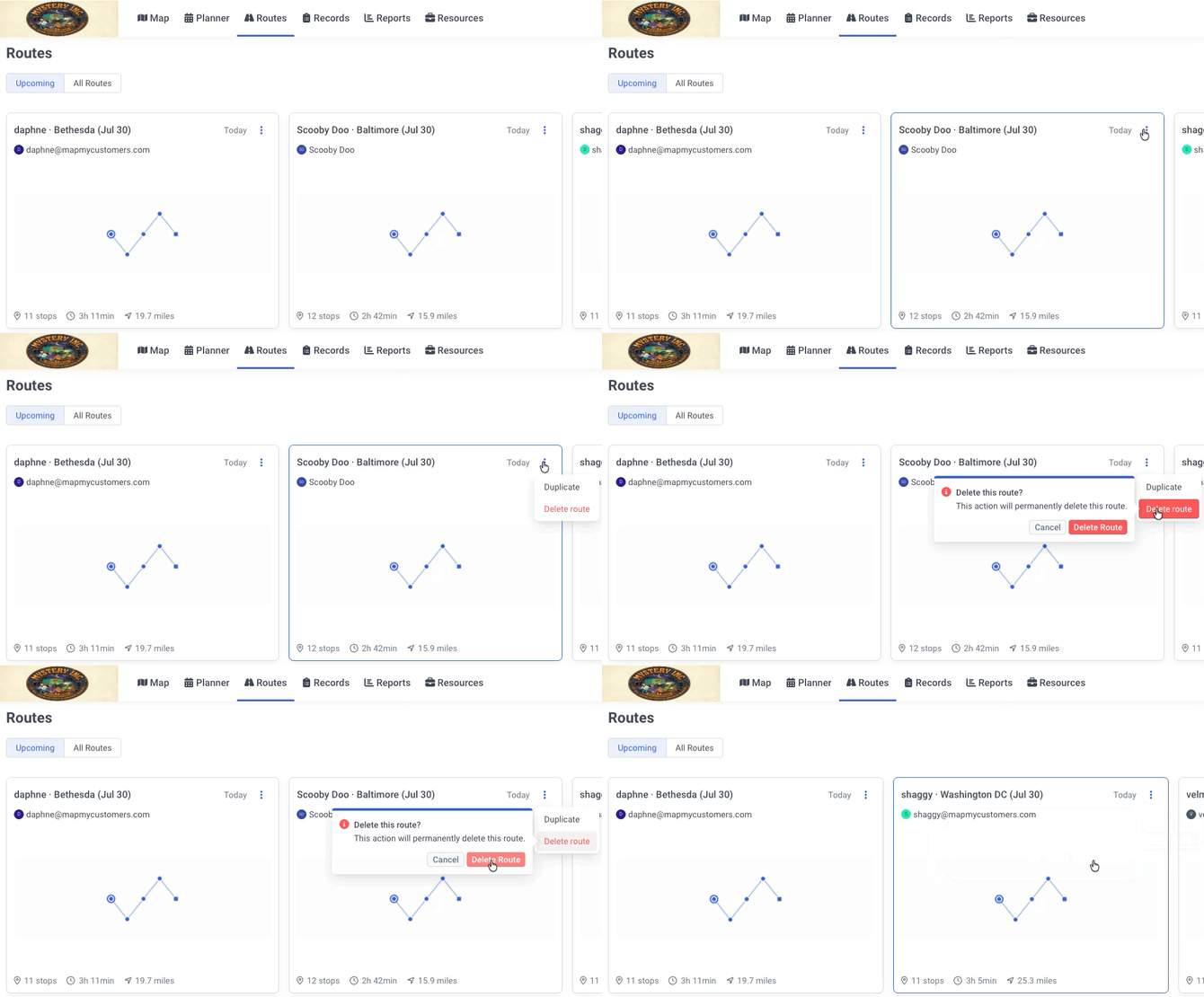
- If the Route is not upcoming, find the Route you would like to delete in the All Routes tab. Open the Route and use the three dot menu option in the right corner of the Route to expose the "Delete route" option.