
There are many ways you can edit routes within the Routes section. This article walks through how to you can:
-
Invert the Route
-
Manually change the Route order
-
Move stops from one Route to another Route
-
Add additional stops to the Route
-
Use the Lead Finder tool to find new prospects to add directly to your route
-
Add Temporary stops to a Route
-
Lock the arrival time of a stop
-
Clone a Route
- Delete a Route
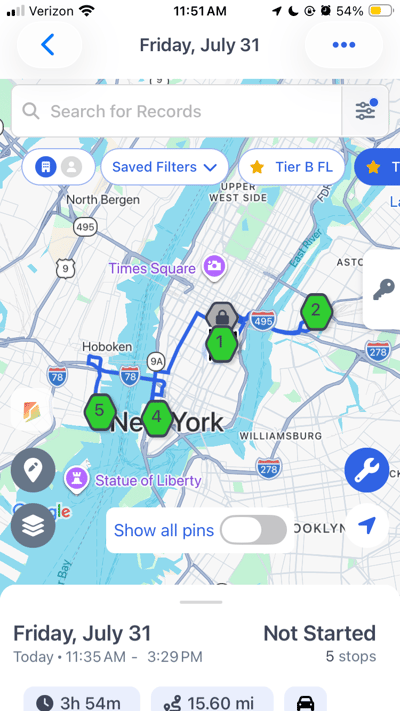
1. To edit Route details:
-
Tap on "Routes" in the Navigation Menu
-
Tap on the route you want to edit, and the route will appear on the map
-
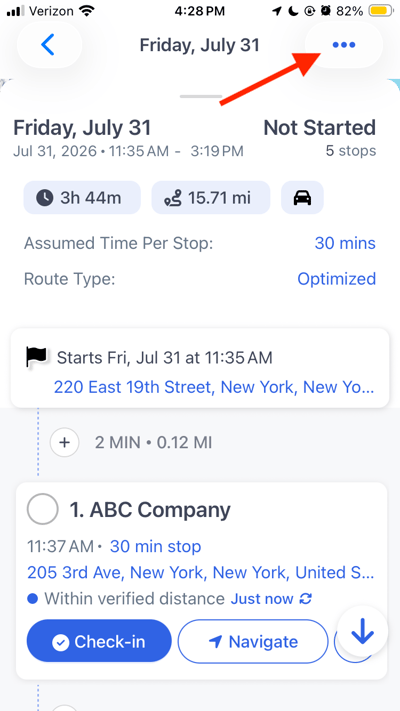
Tap the three dots ellipsis menu (...) on the top right of the screen
-
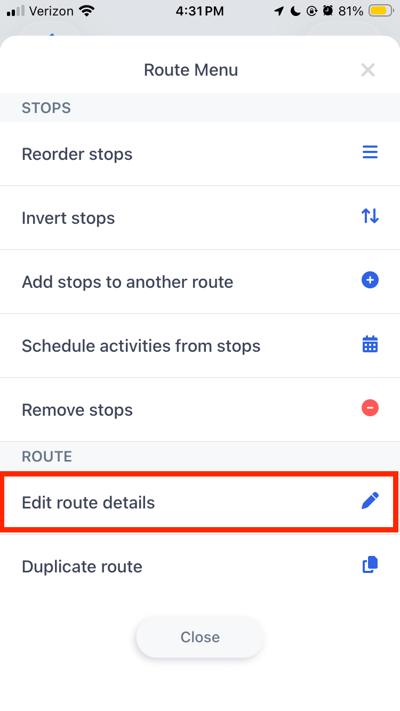
Select "Edit route details" from the Route Menu
-
Edit any necessary fields such as starting or ending location or Route Type
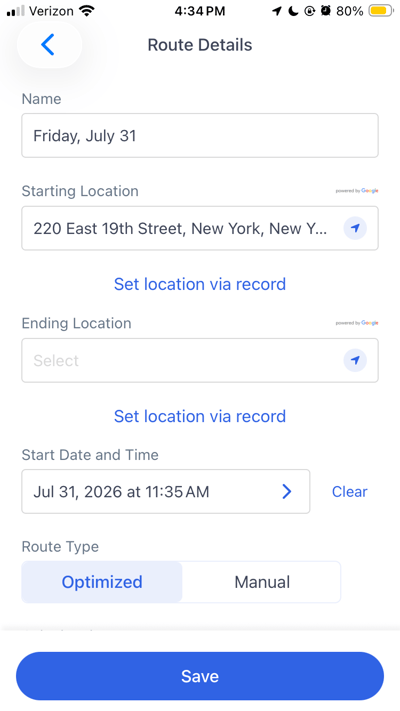
- Tap "Save"
2. To invert a Route's Order:
If the Route was optimized closest stop to furthest stop and you would like to start at the furthest location and work your way home, the invert functionality will completely inverse the order of the stops in one click of a button- Tap on "Routes" in the Navigation Menu
- Tap on the route you want to edit, and the route will appear on the map
-
Tap the three dots ellipsis menu (...) on the top right of the screen
- Select "Invert" from the Route Menu and you will automatically be brought back to the Route Map with the stop order inverted
.png?width=400&height=712&name=IMG_5152%20(2).png)
3. To reorder stops in a Route:
- Tap on "Routes" in the Navigation Menu
- Tap on the route you want to edit, and the route will appear on the map
- Tap the three dots ellipsis menu (...) on the top right of the screen
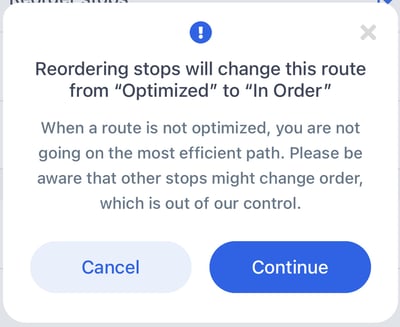
- Go to "Reorder stops" (Keep in mind reordering stops will change this route from "Optimized" to "In Order"
-
Tap and hold the stop and move it to where you would like it to be in the route
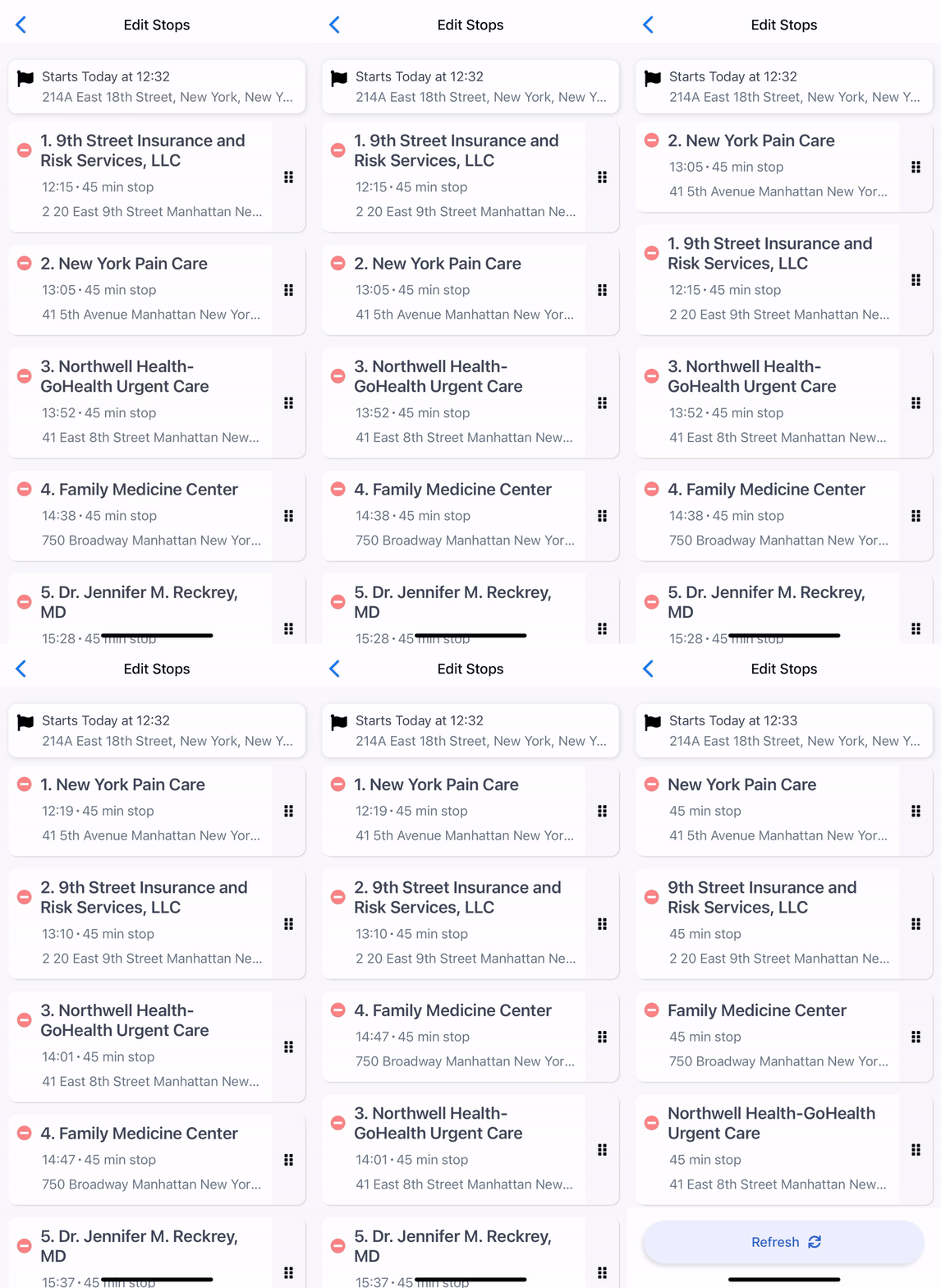
- Select the back arrow and you will now be able to see the new stop order.
4. To add / move stops to another route
- Tap on "Routes" in the Navigation Menu
- Tap on the route you want to edit, and the route will appear on the map
- Tap the three dots ellipsis menu (...) on the top right of the screen
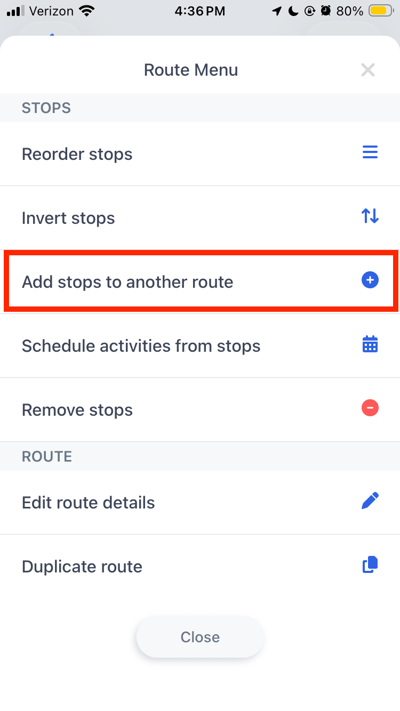
- Go to "Add stops to another route"
- Select the stops you would like to add to another route
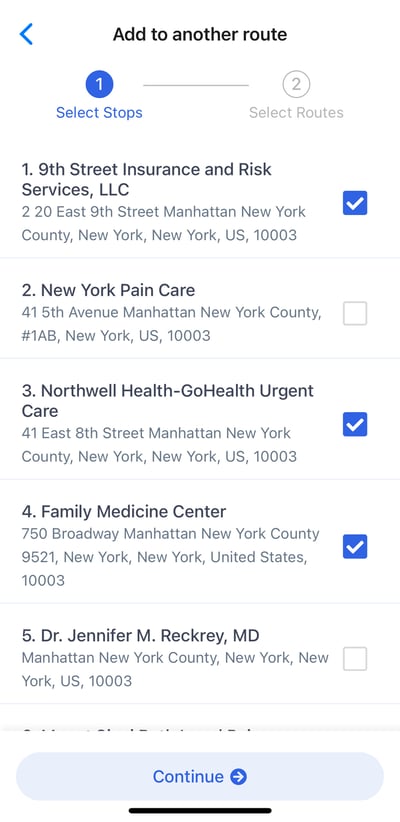
- Tap on "Continue"
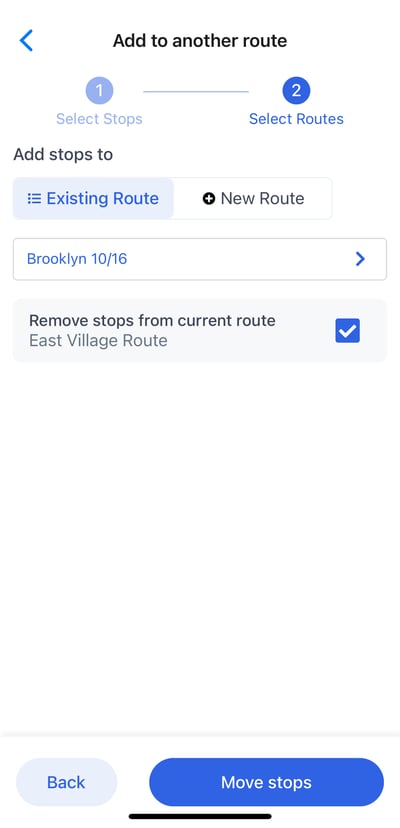
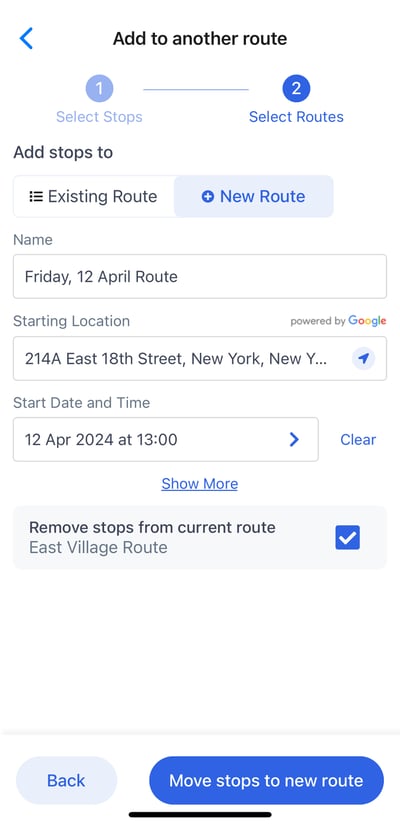
- You can add the stops into an Existing or create a New Route with the selected stops
-
Select whether you would like to Remove or Keep the stops from the current route
- Tap on "Move stops to new route"
5. To delete a stop in a Route:
- Tap on "Routes" in the Navigation Menu
- Tap on the route you want to edit, and the route will appear on the map
- Tap the three dots ellipsis menu (...) on the top right of the screen
-
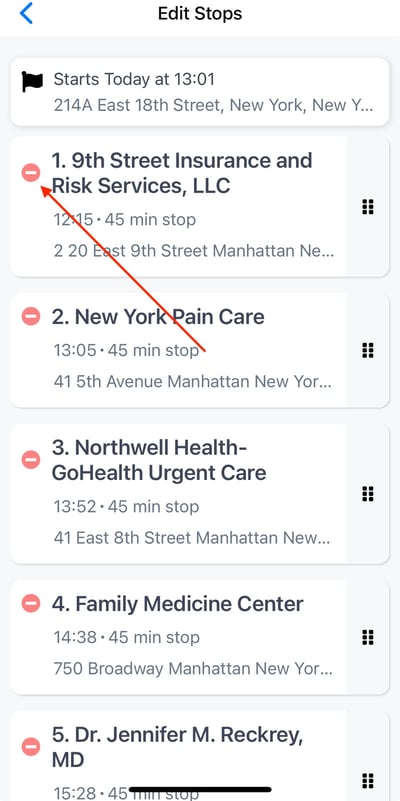
Go to "Remove stops"
.png?width=400&height=712&name=IMG_5152%20(1).png)
-
Tap the Delete red button on the stops you would like to remove
6. To add existing accounts to a Route:
- Tap on "Routes" in the Navigation Menu
- Tap on the route you want to edit, and the route will appear on the map
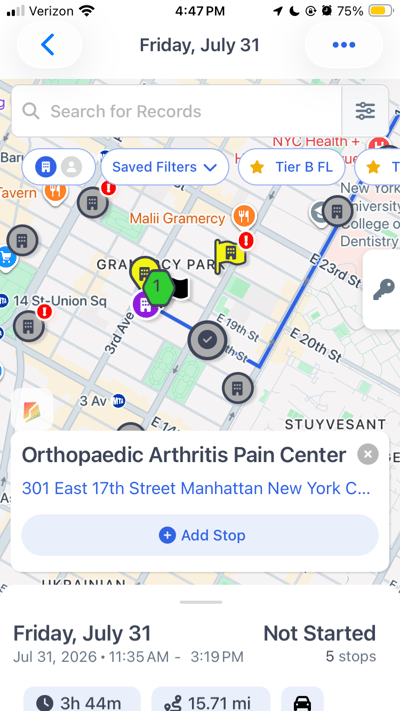
- Toggle on “Show All Pins” to show existing accounts that are not already included in the route
-
Select individual pins you would like to add from the map or type the name of the account in the “Search Companies” search bar
- Tap "Add Stop"
- Tap on "Routes" at the bottom Navigation menu
- Select the Route that you would like to add Lead Finder leads to
- On the lower right side of the screen, tap the blue wrench > Lead Finder Magnifying Glass
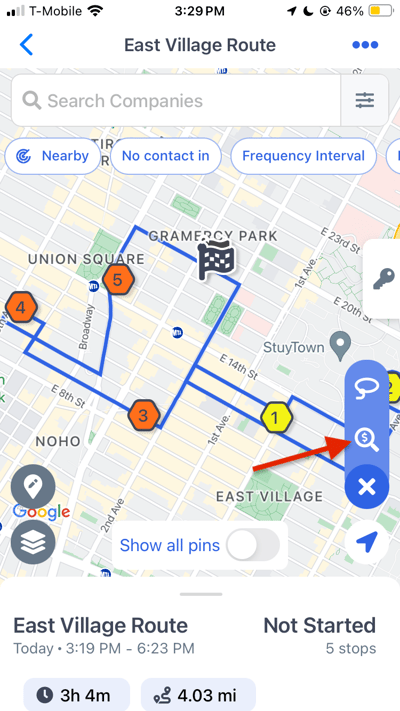
- Enter your search keyword, search radius and where around the Route you would like to search i.e. generally around the Route or near the starting location specifically
- Select the Companies or People you would like to add
- Tap “Add selected leads”
-
Fill out the relevant fields for required standard or custom fields if applicable. These leads will be added to both your records as well as the Route.
-
Select “Add leads to Companies (or People) and Route" to add these records into the MMC system and to finalize and save these changes
8. To add Temporary Stops to a Route [Enterprise Only Feature]:
Perhaps you are meeting with a client for lunch or at an off-site location, Temporary stops allow you to add these locations into the Route you build without having to add the location (like a coffee shop) as a record into MMC
-
Tap on "Routes" at the bottom Navigation menu
-
Select the Route that you would like to add a Temporary Stop to and pull up the Route list view
-
Click on the plus button in between the two stops where you would like to add the Temporary stop and fill in the address of the Temporary location
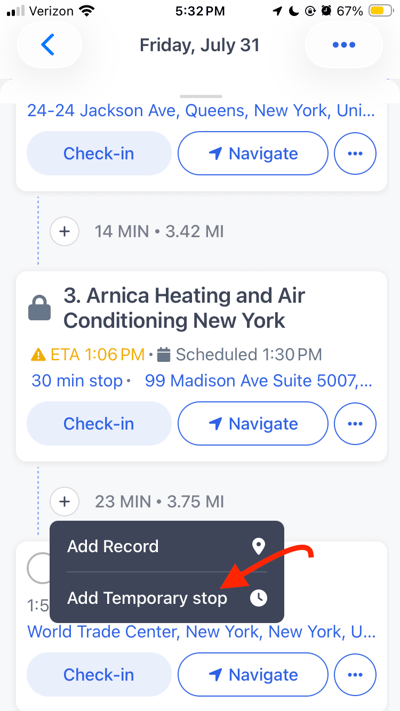
- Alternatively, click a POS location on the base map on the Route map view to add this location as a Temporary stop
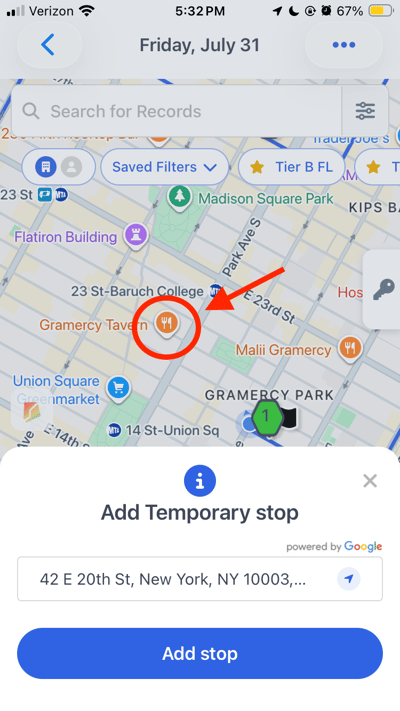
- Temporary stops will appear within the Route with an hourglass symbol
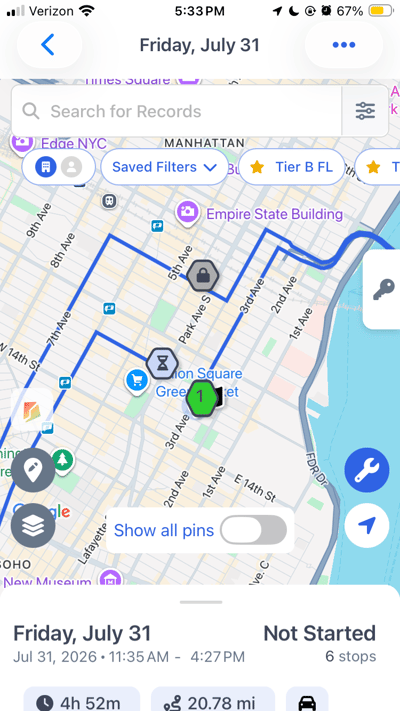
9. Lock the arrival time of a stop [Enterprise Only Feature]:
Perhaps you have an appointment or know the best time to visit a certain account, locking stops allows you to optimize the Route around that specified time
- Tap on "Routes" at the bottom Navigation menu
- Select the Route that you would like to lock a stop for and pull up the Route list view
- Using the three dots ellipsis menu (...) on the right of the record you would like to lock a stop for
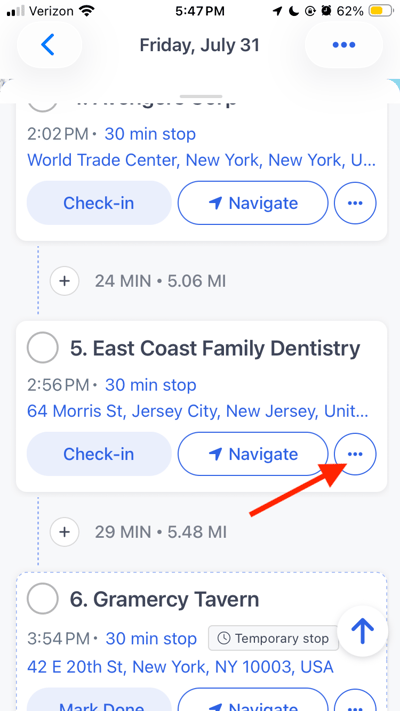
- Select "Lock stop arrival time" and input the time to lock
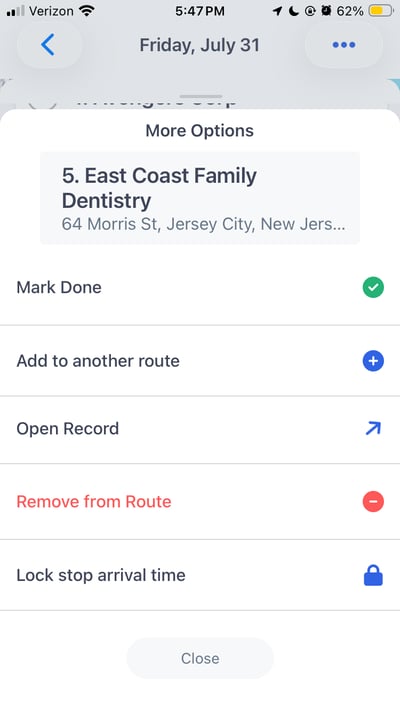
- The Route will now re-optimize the order based on the starting / ending location and any other locked appointments to target an arrival as close to this time as possible
10. To clone a Route:
- Tap on "Routes" at the bottom Navigation menu
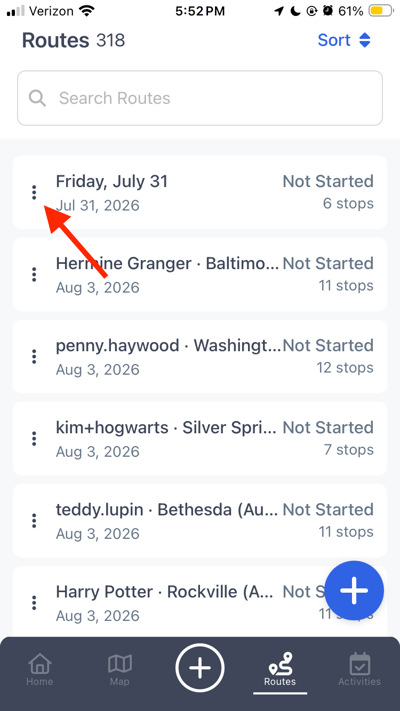
- Identify the route you want to clone
-
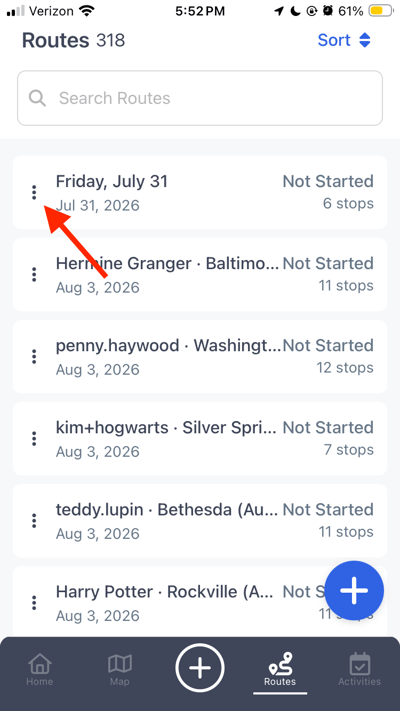
Tap the three dots ellipsis menu (...) on the left of the Route name
-
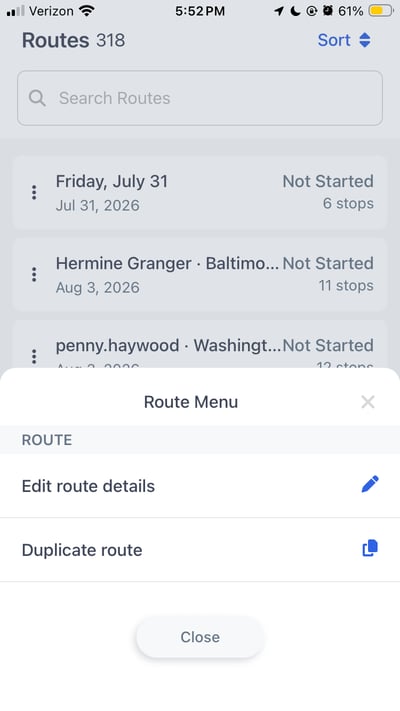
Select "Duplicate Route" from the menu that appears
11. To delete a Route:
- Tap on "Routes" at the bottom Navigation menu
- Identify the route you want to delete
- Tap the three dots ellipsis menu (...) on the left
- Select "Delete Route"