
Geographic Color Mapping in a MMC web feature that provides flexible map visualization options by allowing you to color-code both Territories and Geographic areas (state, county or postal code) based on numeric or monetary fields from your data or a count of records based on filtered criteria
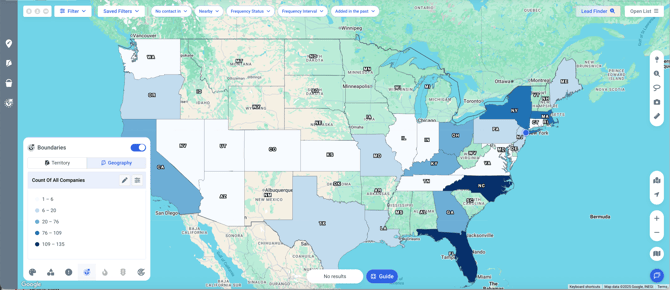
Geographic Color Mapping will allow all user roles to turn on the standard visualization options and Team Owners can create additional custom visualizations options or share permissions for different roles to create custom visualizations via the Organization Preferences > Map Settings
Note: To use Geographic Color Mapping with Territories - you must have access to the premium Territory feature. All teams have access to using Color Mapping based on Geographic State, County or Postal Code boundary lines
Watch the webinar walkthrough of this feature here!
To turn on standard Geographic Color Mapping options:
- Click on "Map" from the Main Navigation Menu
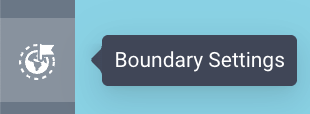
- Click on the “Boundary Settings” button from the Map Navigation on the left side of the Map
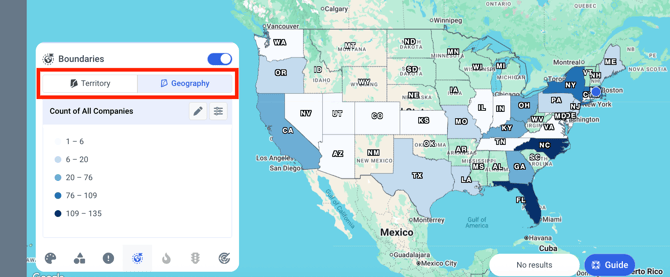
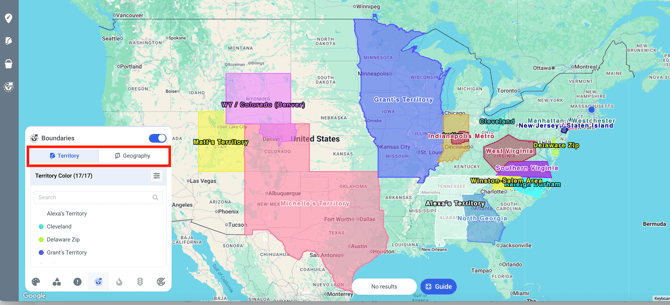
- Select whether you would like to visualize based on Territories or Geography
- By default - Territories will be colored by “Territory Color” and Geographies will not have a colorization turned on
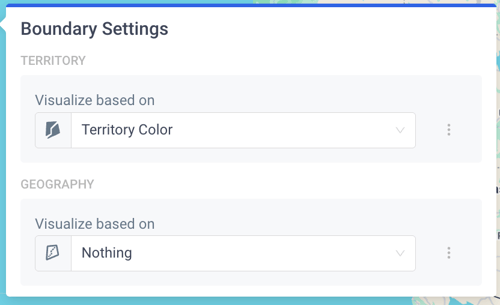
- By default - Territories will be colored by “Territory Color” and Geographies will not have a colorization turned on
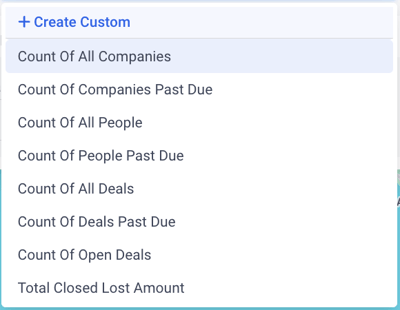
- Choose from the desired dropdown which standard colorization option you would like to see such as colorization by Count of Companies or Total Closed Won Amount within a Territory or Geographic boundary
- Records “Past Due” will aggregate by Company, People or Deal records that have gone off Frequency
- Median Income and Population will use external demographic census information
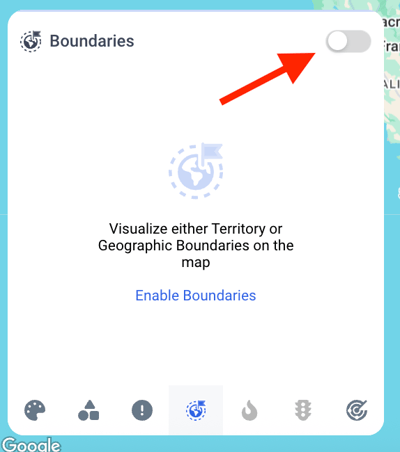
- Upon selecting a colorization method - the map will automatically adjust in the background. If the colorization is not appearing, ensure that Boundaries are enabled in the Map Layers Menu
- Tip: Turning off the Company, People and Deal data records in the upper left corner of the Map can be helpful to view your geographic color mapping more easily
- Switch between colorization by Territory or Geographic boundary using the tabs at the top of the Maps Layer Menu
To create custom Geographic Color Mapping options:
- Click on "Map" from the Main Navigation Menu
- Click on the “Boundary Settings” button from the Map Navigation on the left side of the Map
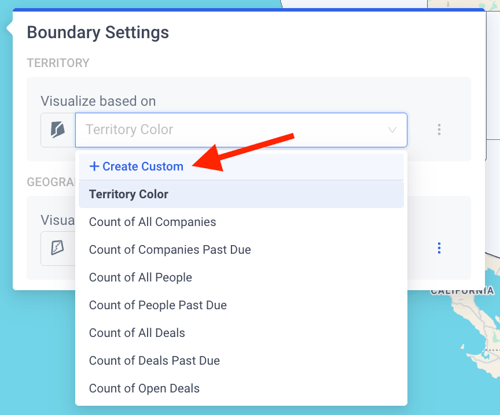
- Select the dropdown based on whether you would like to create a custom visualization on Territories or Geography and choose the “+ Create Custom” option
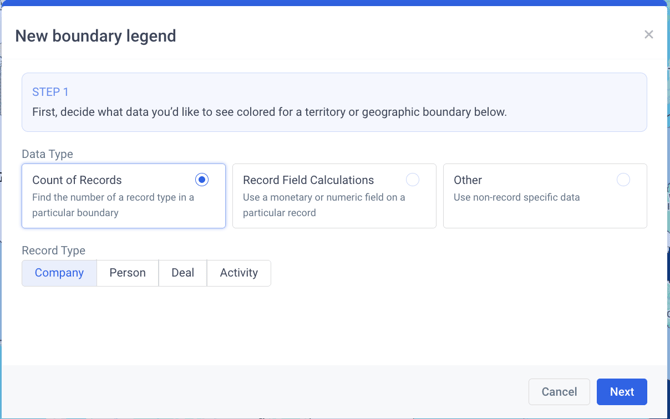
- Decide what data you’d like to see colored for a territory or geographic boundary:
- Count of Records - Find the number of a record type in a particular boundary
- EX: Number of verified check-in Activities or Number of Deals estimated to close by end of year
- Record Field Calculations - Use a monetary or numeric field on a particular record
- EX: Total YTD sales by state or average YTD sales by state
- Other - Use external dataset information such as Median Income or Population
- If there are other external datasets you would be interested in seeing here - let us know via this form!
- If there are other external datasets you would be interested in seeing here - let us know via this form!
- Count of Records - Find the number of a record type in a particular boundary
- Select the object type (Company, People, Deals or Activity) that you will be creating your Geographic Color visualization from
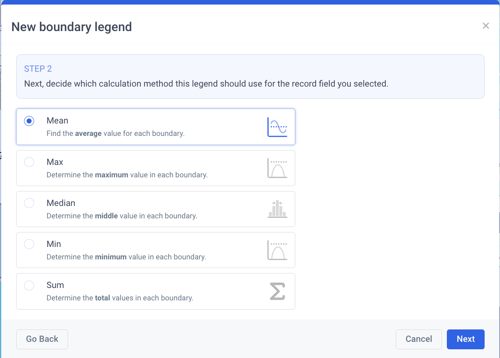
- If you are using a Record Field Calculation, choose the field on the selected object that you will be calculating from and choose the calculation method (mean, median, max, min or sum) on the next step
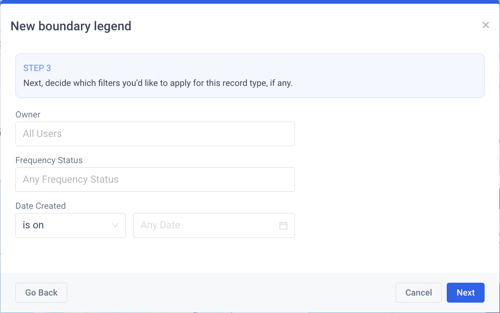
- Next, decide which filters you’d like to apply for this record type, if any
- Lastly, provide a name for your boundary legend and determine if this should be visible to only yourself, certain teams or the entire organization
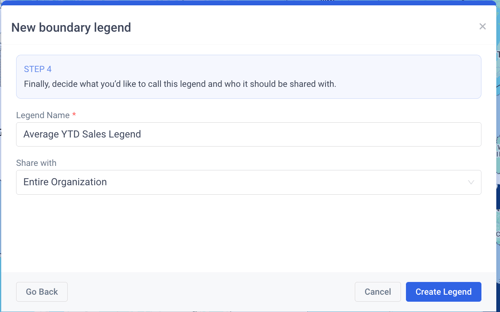
- Select “Create Legend” to save the selections you have made. To make any adjustments to the settings of the newly created legend, use the “Customize” button on the popup that appears upon saving or follow the directions in the section below
By default - MMC will create the colorization rules using natural breaks in the data set and a blue gradient color scale
To edit Geographic Color Mapping legend settings:
- Click on "Map" from the Main Navigation Menu
- Click on the “Boundary Settings” button from the Map Navigation on the left side of the Map
- Select the 3 dot menu on the right side of the Territory or Geography based visualization depending on which legend you would like to edit and select the “Edit” option
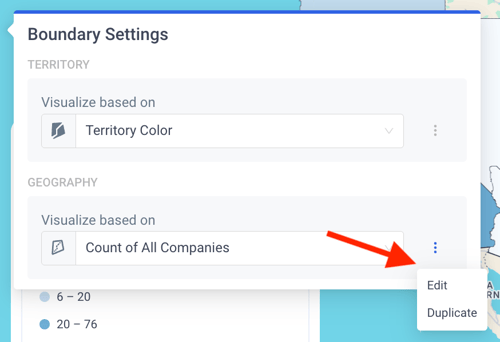
- A side panel will now appear on the right side of screen allowing you to make edits to the legend configuration based on:
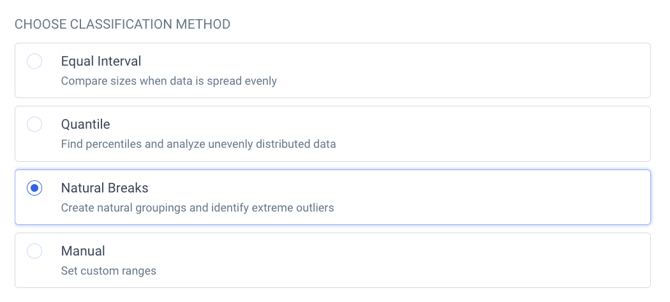
- Classification Method:
- Equal Interval - Create buckets where each interval is the same size
- Quantile - Create buckets where each interval contains the same number of records
- Natural Breaks - Create buckets that are grouped naturally via MMC defined logic rules
- Manual - Create buckets where intervals are determined by your needs and customizations
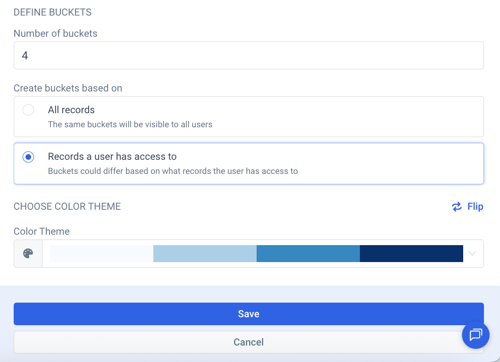
- Number of Buckets: Determine how many different buckets should be created based on the classification method selected. If using Manual classification - in this step you will define the breakpoints in the legend
- Permission Logic: If applicable to the classification method selected
- Color Theme: Determine if the color preference is set in a gradient, qualitative or custom color theme
- Classification Method:
- Select Save at the bottom of the side panel to adjust any changes made to the Color Legend