Welcome to Map My Customers!
In this article, we’ll walk you through the different data objects and using the Universal Plus button. If you haven’t already, take a moment to read through Getting Started to learn the foundations of the different objects and core features of our system.
MMC Objects
Every CRM uses “objects” or types of records to represent a certain kind of customer relationship. For example, Salesforce uses “Accounts” to represent the organizations you may do business with and “Contacts” to represent the individual people within that organization.
At Map My Customers, we have four standard data objects:
- Companies
- People
- Deals
- Activities
Additionally, MMC has other objects that are built from the standard data objects or relate to these objects
- Groups
- Routes
- Emails
- Drives
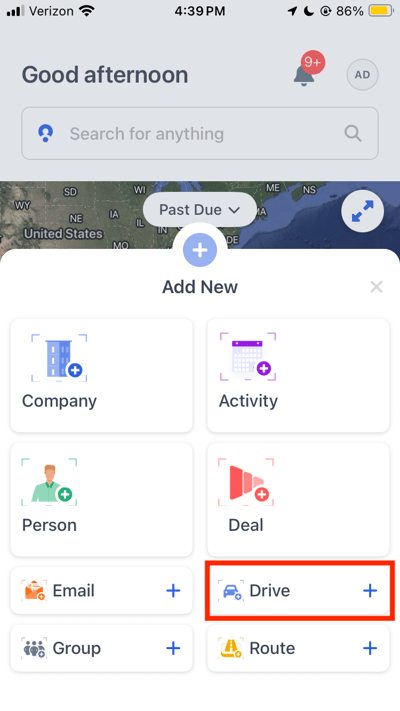
.png?width=400&height=711&name=IMG_4528%20(1).png)
What is a Company?
Companies in Map My Customers are the organizations that you do business with. In similar software systems, they may be called “Accounts” or “Organizations.”
What to know about Companies:
- Companies can be related to each other in parent/child relationships. For example, regional branches could be “child” Companies related to the “parent” Company, the headquarters.
- A Company can have any number of People related to it
- A Company can have any number of Deals related to it
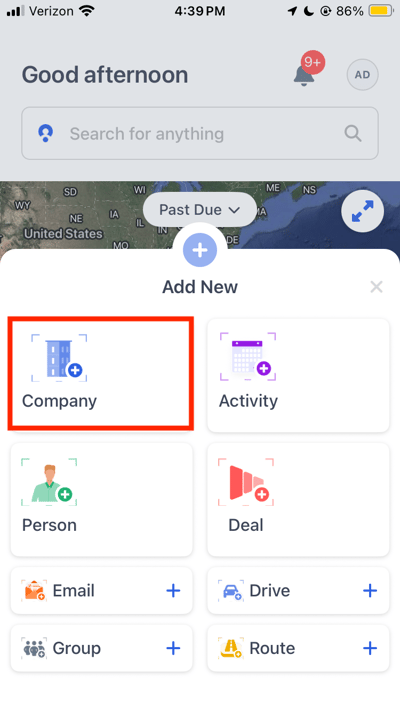
To create a Company from mobile:
Tip: It’s easiest to add Companies in bulk using Import on our web app
- Tap the “+” icon at the bottom Navigation menu
- Select “Company”
What is a Person?
People in Map My Customers are the individuals you communicate with. In similar software systems, they may be called “contacts,” “leads,” or “prospects.” A person works for a Company and may be any point of contact or stakeholder you do business with.
Some notes about People:
- A Person can be associated with any number of Companies
- A Person can be associated with any number of Deals
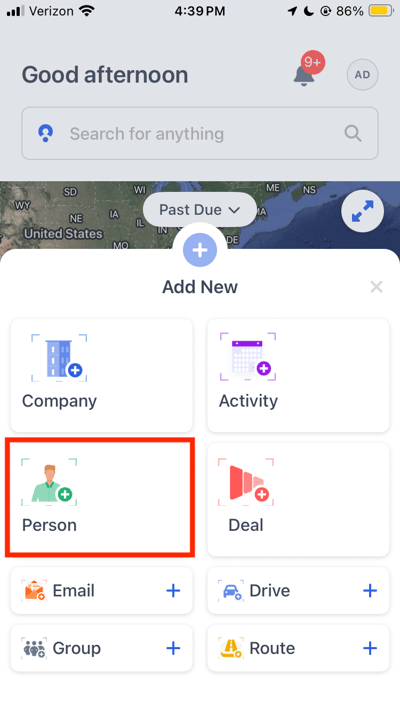
To create a Person from mobile:
Helpful tip: It’s easiest to add People in bulk using Import on our web app.
- Tap the “+” icon at the bottom navigation menu
- Select “Person”
Note: If the Person you are creating should be associated to an existing Company, it is recommended to add the Person via the Relationship tab of the existing Company
What is a Deal?
Deals in Map My Customers are unique sales opportunities you are pursuing with a Company or Person. In similar software systems, they may be called “opportunities” or “estimates.”
Some notes about Deals:
- Deals have unique information that other objects do not: Amount, Close Date, Funnel, and Stage
- A Deal can be associated with only one Company
- A Deal can be associated with only one Person
- A Deal can only be in one Funnel
- A Deal can be in only one Stage at a time
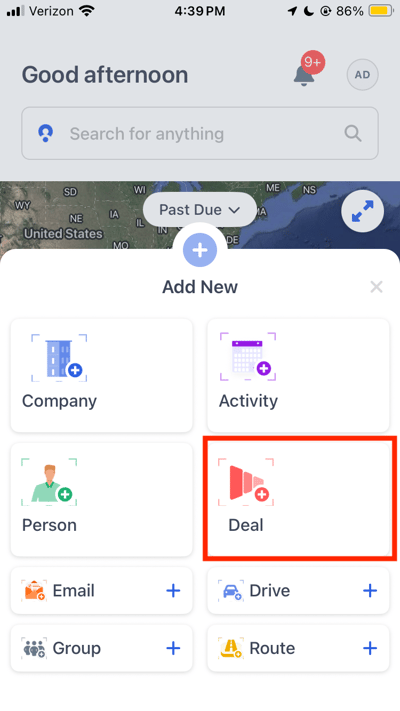
To create a Deal from mobile:
Helpful tip: It’s easiest to add Deals in bulk using Import on our web app.
- Tap the “+” icon at the bottom Navigation menu
- Select “Deal”
Note: If the Deal you are creating should be associated to an existing Company or Person, it is recommended to add the Deal via the Relationship tab of the existing Company or Person
Activities
Activities in Map My Customers represent any action (such as a call or meeting) that you performed or will perform in the future. In similar software systems, these may be called “tasks” or “events.”
Activities differ from Companies, People, and Deals as they represent a specific action or interaction with a customer.
Some notes about Activities:
- Activities have unique information that other objects do not: Activity Type, Start Date / Time and Completion Status.
- You can log Activities in relation to a Company, Person, Deal, or all three
- Custom Activity types can be created by the MMC Team Owner
- Activities have their own Notes (separate from Notes attached to Companies, People, and Deals)
- Activities can be marked with a Status of “Complete” or “Incomplete”, depending upon if they’ve already been performed or will be performed in the future
Activity types:
Activities can be further organized into types - a helpful way to identify what kind of activities are most effective when contacting customers.
The following are the default activity types:
- Visit
- Call
- Meeting
- Task
- Lunch
- Text
Account owners can create custom activity types from Settings
To create an Activity from mobile:
- Tap the “+” icon at the bottom navigation menu.
- Select “Activity”
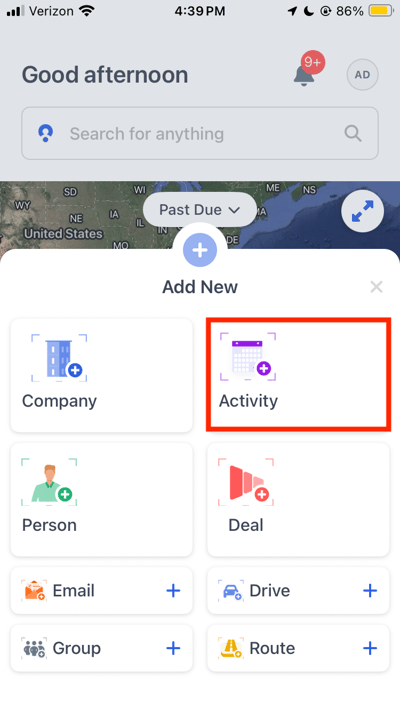
To learn more about logging in-person check-in Activities in the MMC mobile app, visit the check-in article
Groups
Groups in Map My Customers are helpful to your organization of data. Groups can be assigned to the three standard objects: Companies, People, and Deals.
With Groups, you can create custom and focused segmentations of data, share records with teammates, Filter lists and Map views, and much more.
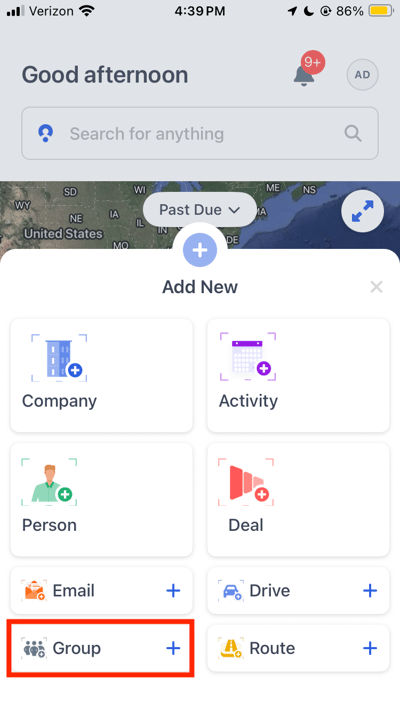
Use Groups to “bucket” your data into logical groupings. Example use cases of Groups:
- Categorizing companies by customer type (e.g., active customers, prospects, lost customers)
- Dividing companies by-product lines they buy (e.g. product A, product B, product C)
- Grouping deals by size (e.g. SMB deals, Mid Market deals, Enterprise deals)
To learn more about Groups on mobile, check out this article.
Routes
In Map My Customers, use Routes to optimize the number of visits you can make in a day.
Routes can be quickly created by lassoing pins on the Map View. Once a Route has been created, you can share it with other members of your team.
Routes can be built for either your Companies or People. Routes can be created based on pre-created Groups, people in a specific region, or customers that are overdue to be seen. Segmenting your Routes makes sure you are always maximizing your time when out on the road. Routes can also be created based on your Weekly activities from the Planner View. To learn more about Planner, visit the planner article .
To access creating a Route from mobile:
- Tap “Routes” in the Navigation bar.
- Select “+” button in the bottom right corner
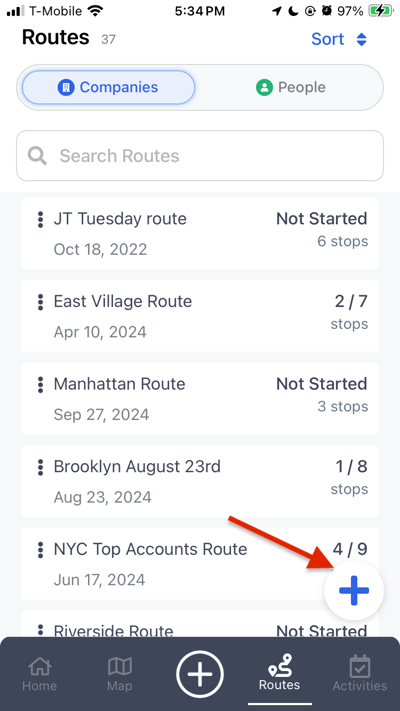
or
- Tap the "+" icon at the bottom Navigation menu
- Select "Route"
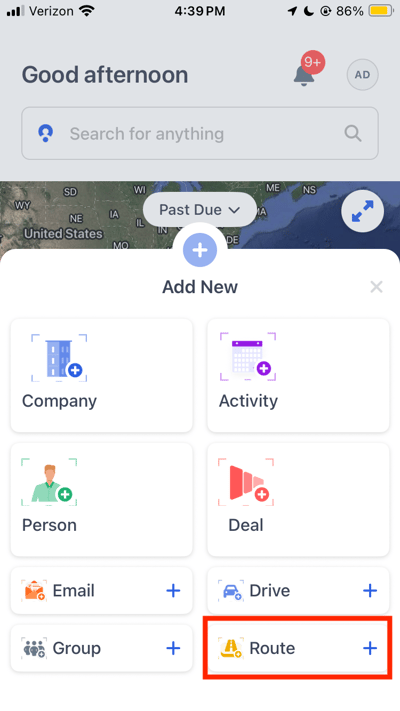
To learn more about Routing, visit this Routes article
Emails
Emails are a premium MMC feature that allows you to directly connect your third party Email provider to MMC to view email threads, send emails or reply to emails directly from the MMC application. With this feature, Activities will automatically be logged for Email interactions, click through and email open information can be captured and reporting can be done.
Emails can easily be sent in bulk by targeting a group of records on the Map with the lasso tool, by opening the individual record you would like to email or by starting to compose an email through the universal plus button
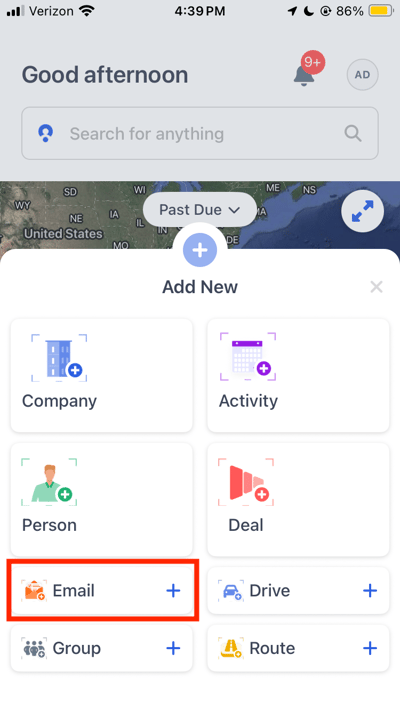
To learn more about sending emails via the MMC Mobile app - visit the Mobile Email article here
Drives
The MMC Mileage Tracker is a premium add on feature that automatically tracks your drives in the background while you move through the day
If there is ever a need to manually log a Drive that was not captured by the automatic feature due to the drive occurring outside the set tracking working hours, this manual log can be accomplished via the universal plus button. This manual drive log can also be done via the Mileage Tracker section on the home screen
To learn more about this feature, please visit the Mileage Tracker article linked here